
GPS speedometer. Every drive, in detail.
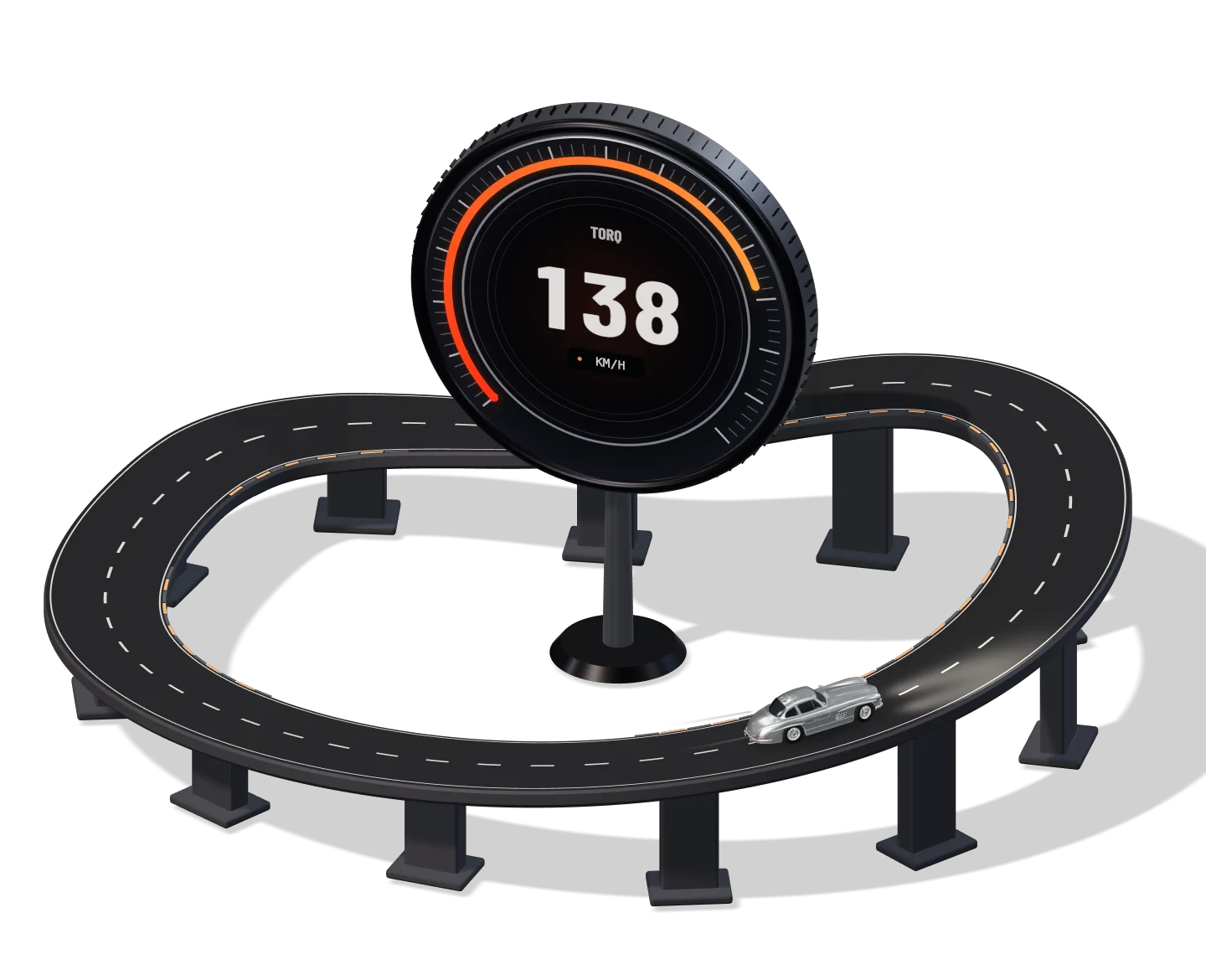
Live GPS speed on a gauge you can read at a glance, with the posted limit beside it. When you park, the drive becomes a replayable route with G-force, corner grades and a score, computed on your iPhone.
Speed you can read.
A large GPS speed with the posted limit in a sign beside it, and distance, time, average and top speed under the gauge. It stays on the Lock Screen and in the Dynamic Island when you switch to Maps.
Speedometer HUD, Live Activity and Picture in Picture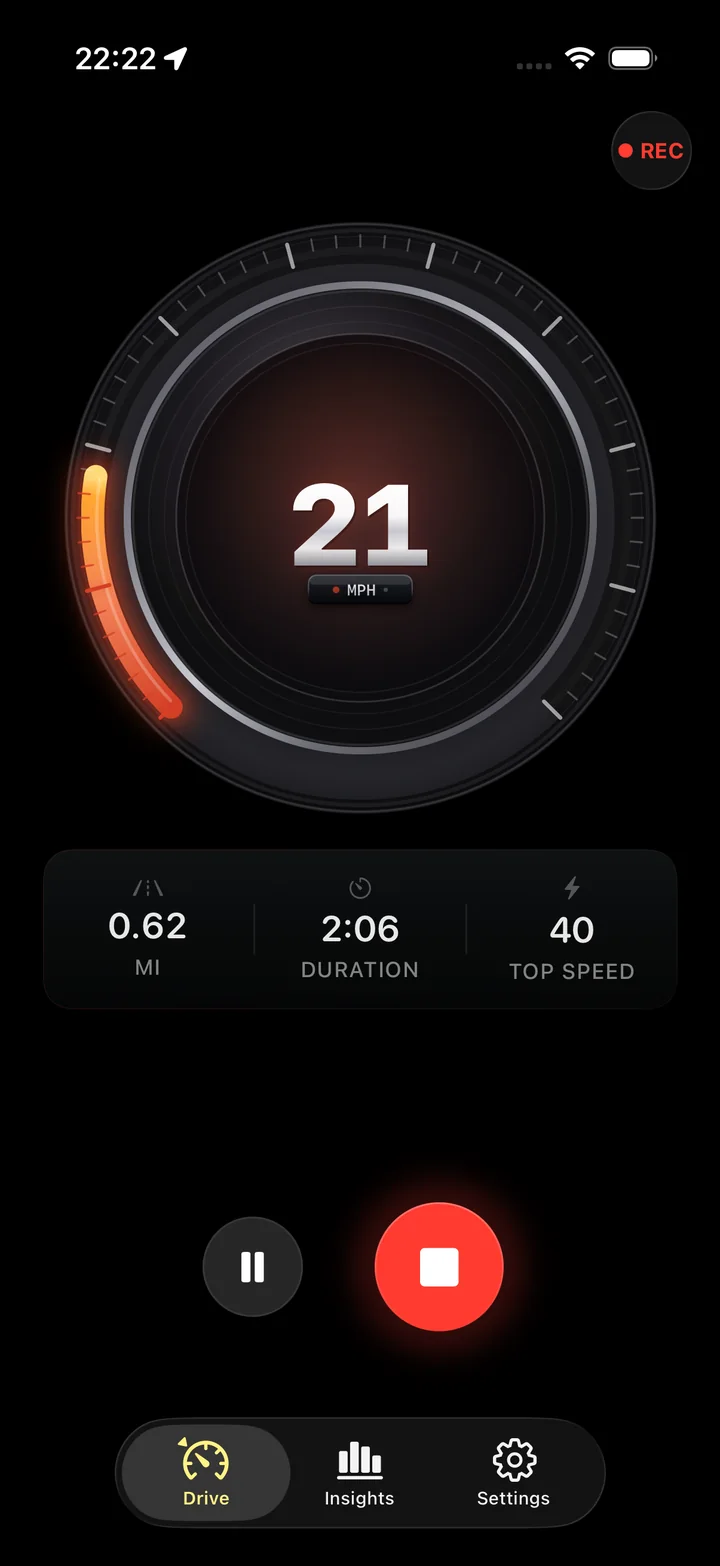
The drive, replayed.
The route on a map, colored by how fast you were going, with every corner marked and graded, speed and elevation charts, and a driving score with its components.
Trip Replay and Route Heat Map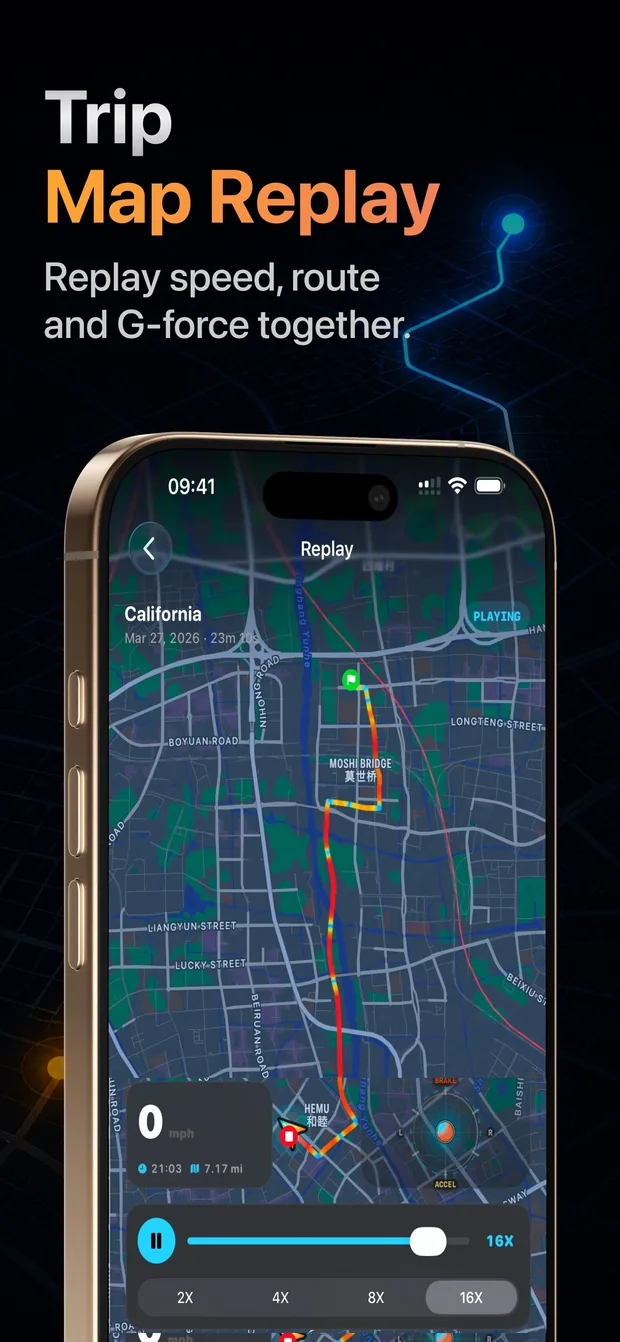
A driving score with its working shown.
Smoothness, cornering, speed control and efficiency combine into one number. Safety, ride comfort and road quality get their own grades. After four scored trips, a driving style profile appears.
Each component is a published formula: smoothness is the 90th percentile of jerk, comfort is the ISO 2631 vertical vibration scale, road roughness is an IRI-style index. The score page explains every one and what moves it.
Driving Score and Driving Style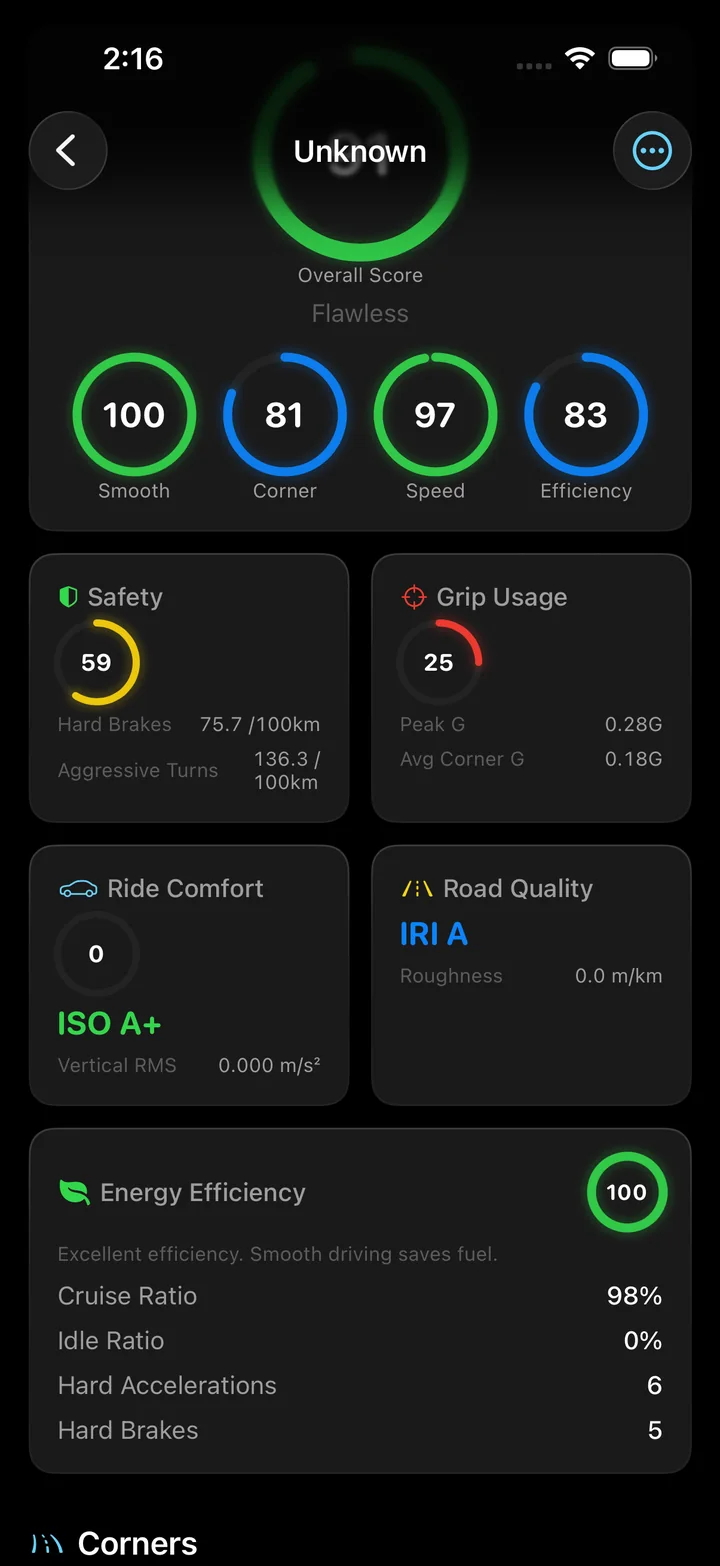
Every corner, graded.
Torq finds each corner in the drive from the GPS heading, classifies it from S to C by how demanding it was, and records the entry, apex and exit speed and the lateral G.
A performance score from 0 to 100 rewards holding speed into the apex, leaving faster than you arrived, and using the grip the corner offered.
Corner Analysis and Corner Grades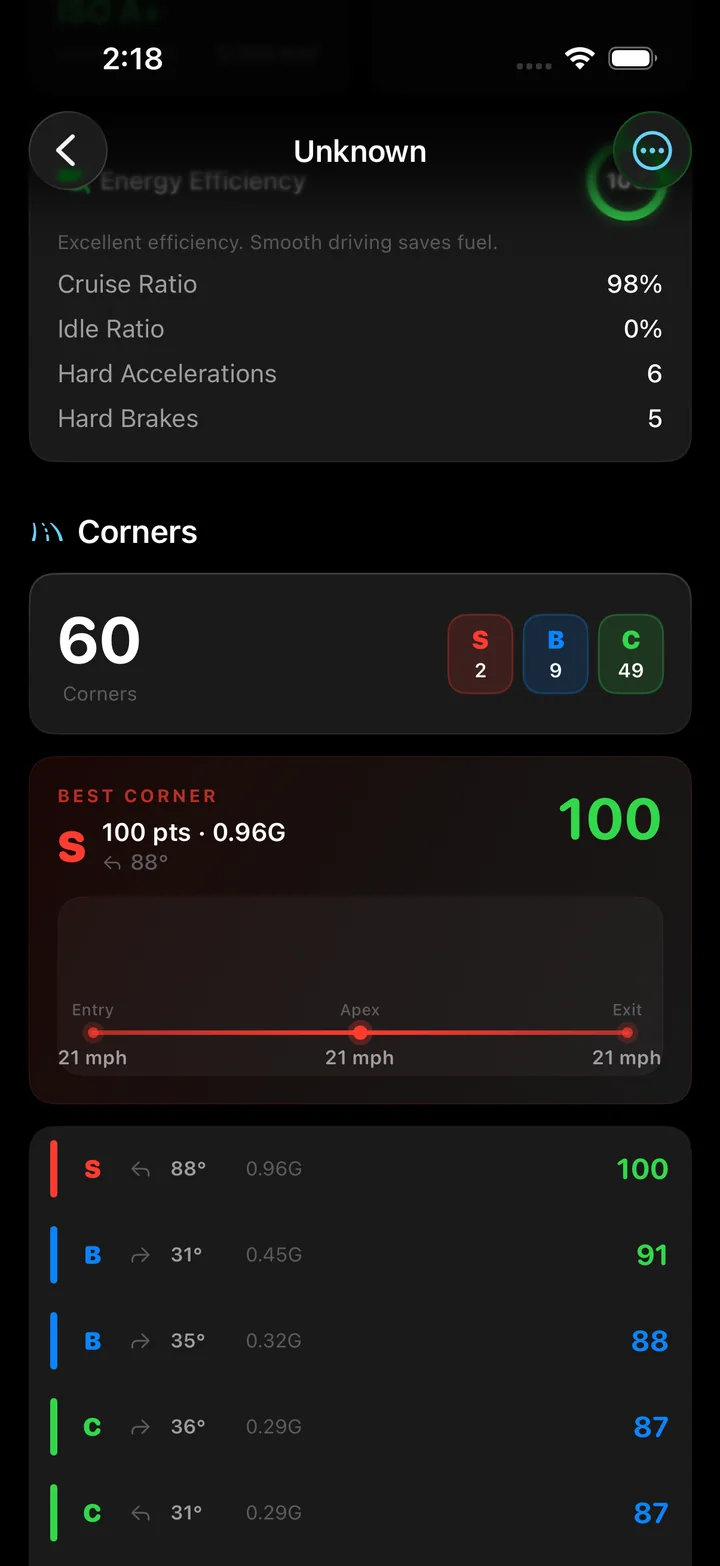
Feel it. Measure the G-force.
Braking, acceleration and cornering each leave a trace. Torq calculates horizontal G from GPS speed and heading, then keeps peak G and each corner’s lateral load with the trip.
G-Force Meter and Accelerometer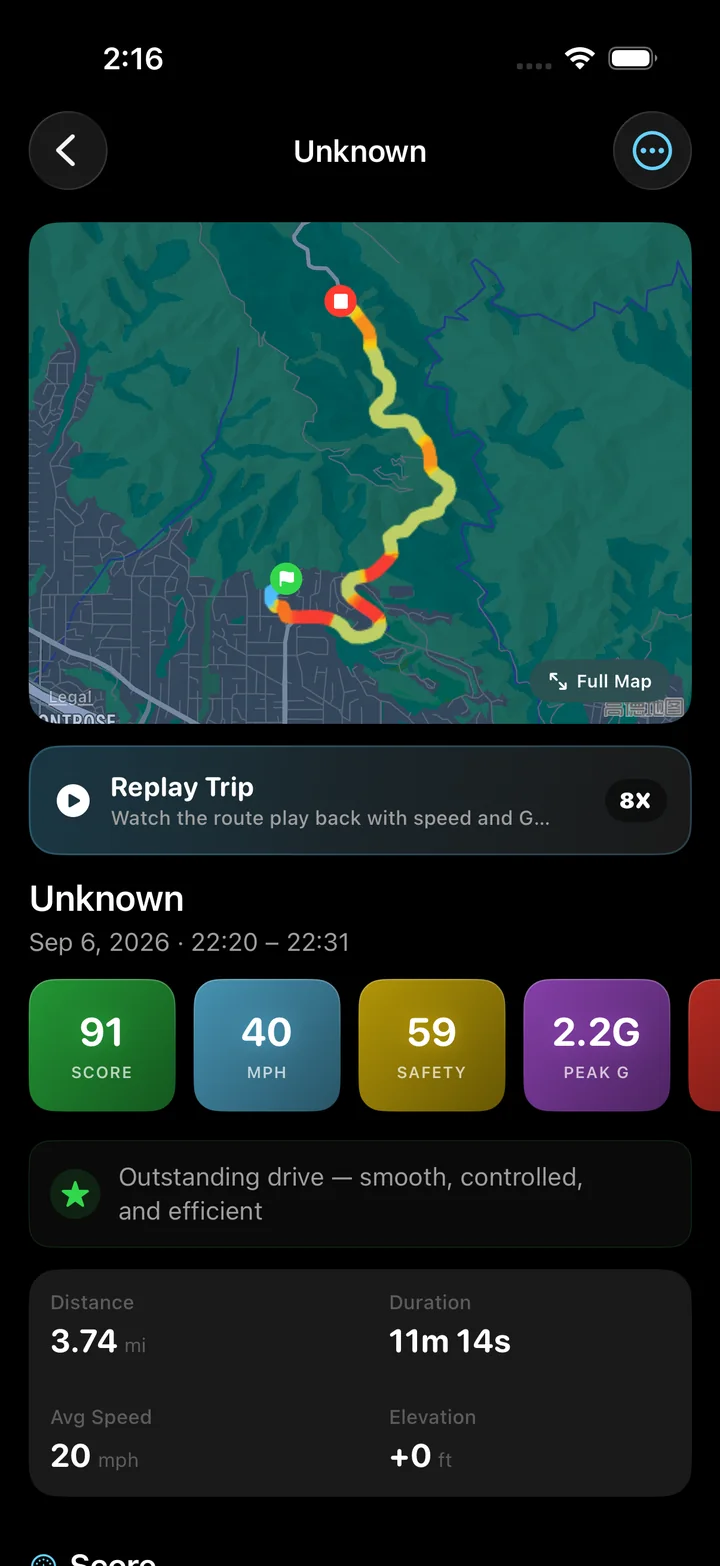
Separate the road from the ride.
A rough road and an uncomfortable ride tell different stories. Torq gives road quality an IRI-style roughness estimate and ride comfort an ISO 2631 grade, using vertical motion from your mounted iPhone.
Road Condition and Ride ComfortYours to export.
GPX for any mapping tool, CSV for a spreadsheet, or the raw sensor file with every point. Nothing is locked inside the app.
GPS Logger with GPX, CSV and Raw Export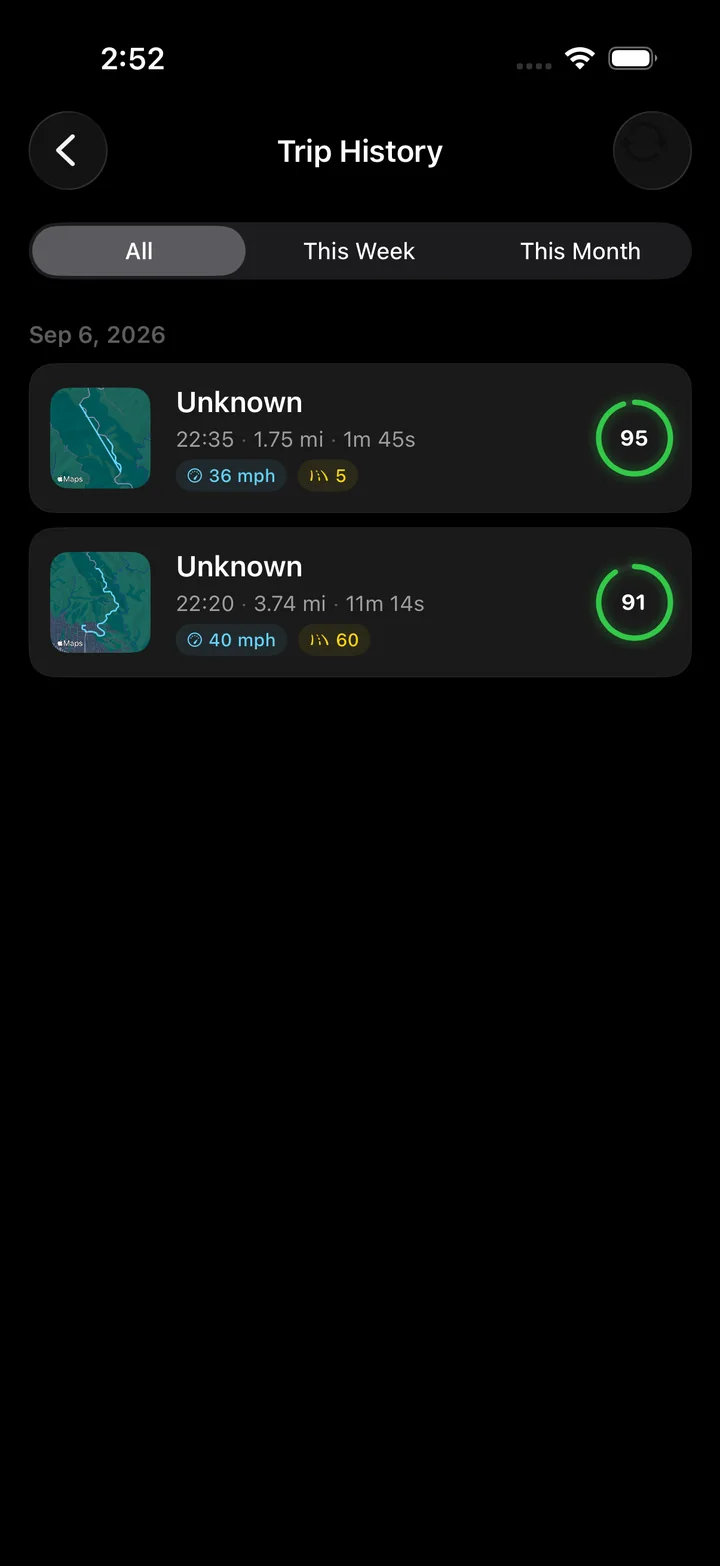
A number to check. A trip to understand.
Speed calculators and GPX tools
Work out an average, change speed units, inspect a track or prepare its points for a spreadsheet.
GPS speedometer guides
Find the right check for an unexpected reading, interpret a trip statistic or plan a longer recording.
Start it once. Read it after.
Torq is built for passive recording. Nothing in it needs a tap while the car is moving.
- 01
Mount the phone and press Start
A dashboard or vent mount keeps the motion sensors steady. Torq asks for location and motion permission once; a single button starts the recording.
- 02
Drive
The gauge shows current speed with the posted limit beside it. Distance, time, average and top speed update live, and the speed stays visible on the Lock Screen if you switch apps.
- 03
Stop, and read the scorecard
Torq turns the GPS trace and the motion data into a driving score, a safety grade, a comfort grade, a road-quality grade and a list of every corner with its rating.
- 04
Replay it, or take the data out
The route replays as a speed heat map at up to 16x. Export the drive as a GPX track, a CSV summary or the raw sensor file whenever you want it somewhere else.
Built on published methods.
The analysis is not a black box. Each grade uses a scale or a technique with a paper or a standard behind it, and the research page lists them.
A centered robust filter with a physical plausibility gate removes speed spikes before top speed is computed.
Frequency-weighted vertical vibration, graded on the zones the standard defines for seated passengers.
An International Roughness Index estimate with separate highway and urban thresholds.
Braking and acceleration thresholds in line with the telematics research the insurers use.
Questions
Is Torq a free GPS speedometer app?
Torq is free to download from the App Store and needs no account. There are no ads. Everything the speed tracker does is in the app: the live speedometer, the trip recording, the scorecard, the replay and the exports.
How accurate is the GPS speed compared to my car's speedometer?
Usually more accurate on an open road. Car speedometers are built to read a little high, so a GPS reading a few km/h under the dial is the GPS being right. Under open sky, one-second GPS speed is typically within one or two km/h of true speed. In tunnels and between tall buildings the signal degrades, and Torq filters the spikes rather than reporting them as a top speed.
Does it work in mph and km/h?
Yes. The unit system is a setting: imperial gives mph and miles, metric gives km/h and kilometers, and it changes the speedometer, the trip stats, the charts and the overlays together.
Can I see my speed while using Maps or music?
Yes. While a drive is recording, the speed appears in a Live Activity on the Lock Screen and in the Dynamic Island, and a Picture in Picture window can float over any other app with the current speed.
Does Torq need an internet connection?
No. Recording, the speedometer, the scorecard and the replay all run on the phone with no connection. The one feature that talks to a server is the speed-limit lookup, which asks OpenStreetMap for the posted limit of the road you are on; without a connection the limit shows as unknown and everything else continues.
Does it record in the background?
Yes. Once a drive is started, recording continues with the screen off or another app in front. The Live Activity shows it is still running.
Does Torq work on a motorcycle, a bicycle or a boat?
The speedometer, distance, duration and the route replay come from GPS and work in any vehicle. The cornering, G-force and driving-score analysis is calibrated for a car with the phone in a mount, so on two wheels or on water treat those grades as a curiosity.
Are my trips uploaded anywhere?
No. Trips are stored in a database on your iPhone and analyzed there. Torq has no account and no server-side copy of your drives. A trip leaves the phone only when you export or share it.
Make the next drive measurable.
Install Torq, mount the phone, press Start. The analysis runs on the phone, and the file is yours to export.