
A speedometer HUD that follows you around the phone.
A speedometer is only useful while you can see it. Torq keeps the current GPS speed on the Lock Screen, in the Dynamic Island and floating over Maps, without you touching anything after you press Start.
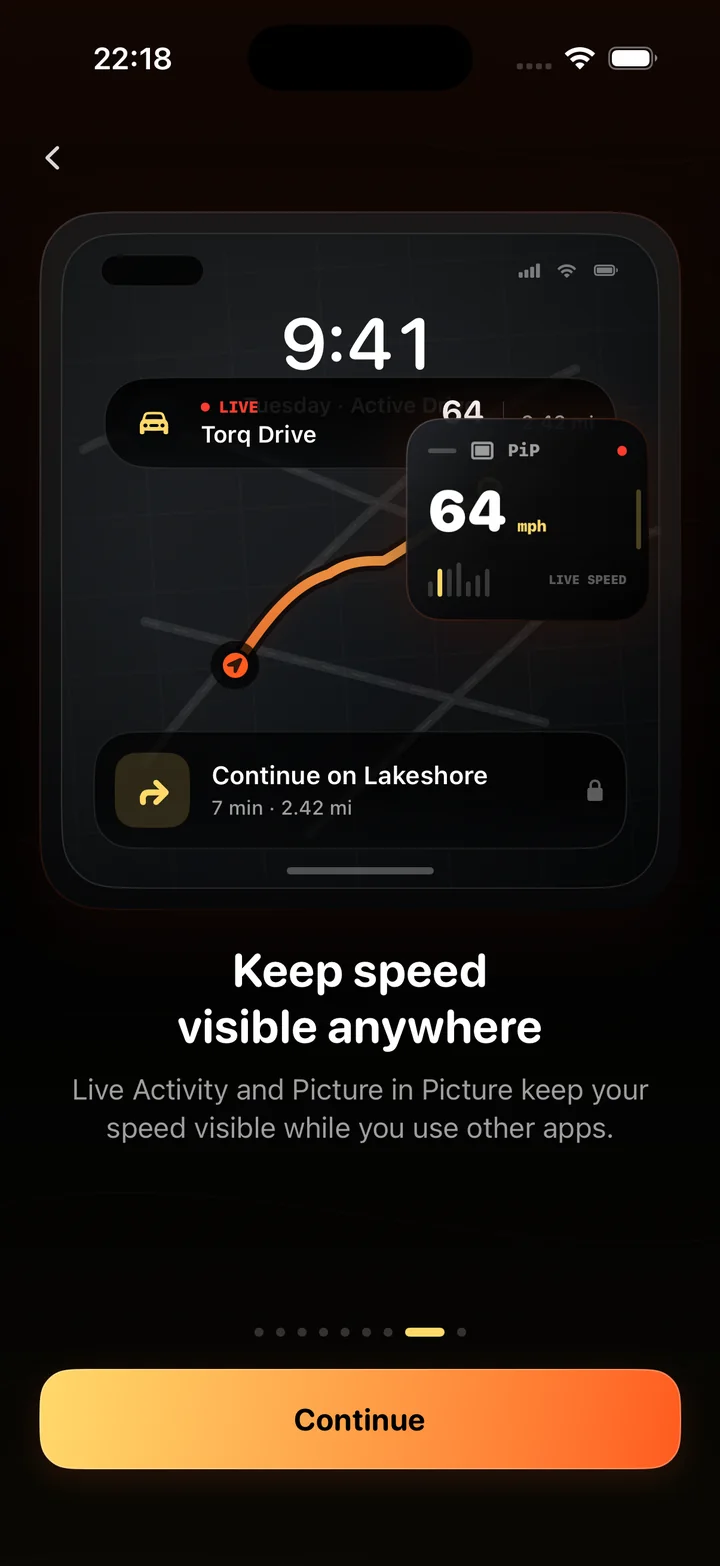
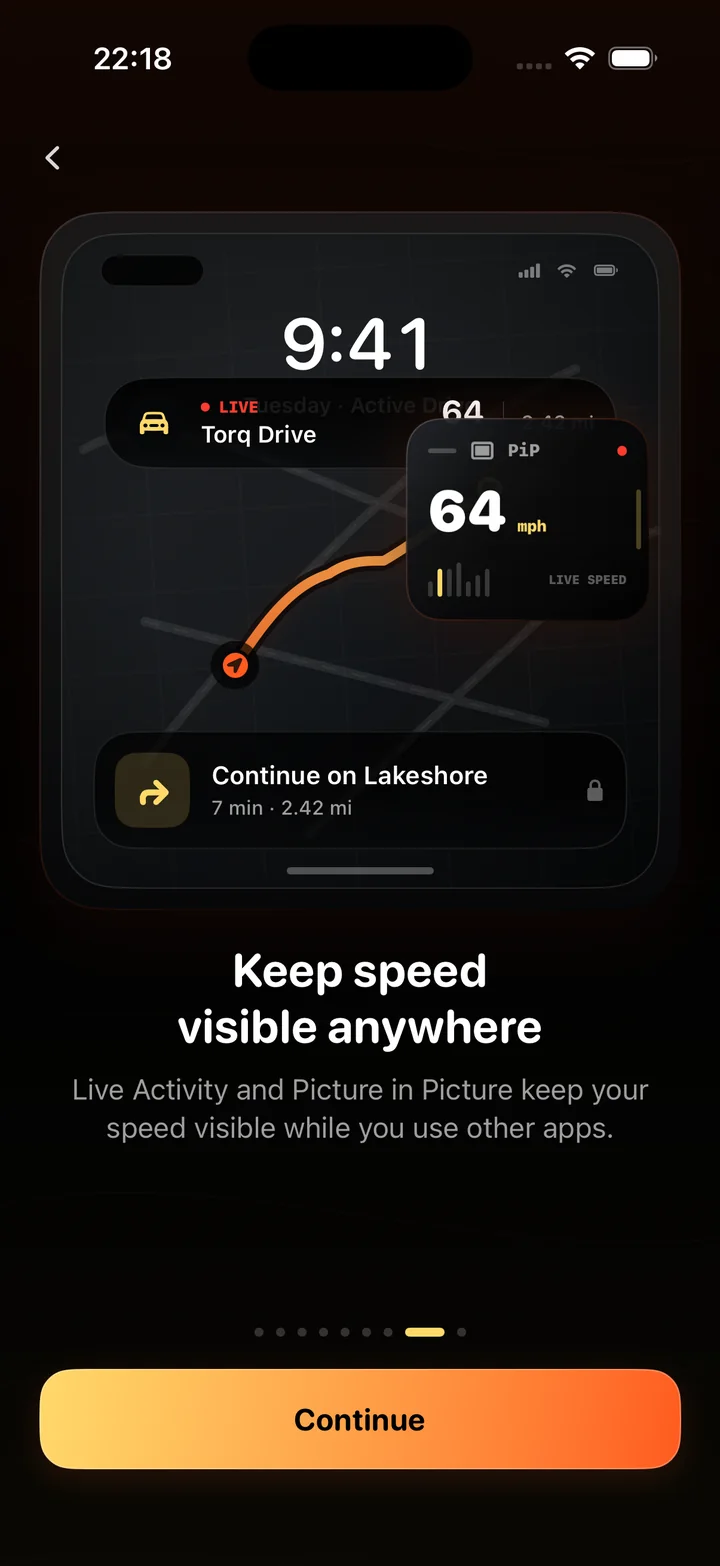
Three places the speed appears outside the app
Each is a setting you turn on once. All three read from the same recording.
Lock Screen Live Activity
When a drive starts, a Torq card appears on the Lock Screen with the current speed, distance, elapsed time and a REC state. A glance at a locked phone in a mount tells you your speed and how far you have come.
Dynamic Island
On iPhones with the Dynamic Island the same activity lives at the top of every screen: the compact view shows the speed and a red REC dot, and a long press expands it to distance and time. Switch to any app and it is still there.
Picture in Picture
A floating window draws the speed in a large numeral with a progress track under it, refreshed every second. It behaves like a video PiP window: drag it to a corner, pinch it larger, and it floats above Maps, Music or anything else.
Navigate with the map, keep the speed in view.
Most people navigate with a maps app while they drive, and a speedometer that disappears the moment Maps opens is a speedometer you stop using. The Picture in Picture window solves that: the speed floats over the map in a corner you choose.
The window updates once a second from the same GPS fix the gauge uses, and it shows a REC indicator while the drive records. No sound is played; a phone on silent still shows it.
- Works over Apple Maps, Google Maps, Waze, Music, Podcasts and every other app.
- Drag it to any corner; pinch to resize.
- Speed in km/h or mph, following the unit setting.
Plan screen use and recording settings before a longer drive. GPS battery drain on iPhone
What HUD means here, and what it does not
Some apps advertise a HUD mode that mirrors the display so it reflects in the windshield at night. Torq does not do that, and this page says so plainly because a search for a speedometer HUD can mean either thing. What Torq means by HUD is a readout that stays in view outside the app, with the phone in a normal mount, right side up, where the camera and the motion sensors are steady.
Why the overlay can trail the gauge by a step
The gauge in the app redraws with every GPS fix. The Picture in Picture window and the Live Activity refresh about once a second, which is the rate iOS delivers location updates at, so the two agree to within a fix. On a hard acceleration the overlay can appear one step behind; on a steady road the difference is invisible. Live Activities also have their own update budget set by iOS, and the system may coalesce updates when the phone is under load. For a reading you act on, the gauge is the source; the overlay is the glance.
Settings involved
- Live Activity: show recording progress on the Lock Screen.
- PiP Speed Display: keep current speed visible while using other apps.
- Speed Limit Alert: warn when your current speed exceeds the route limit.
- Unit System: imperial or metric, applied to every overlay.
Questions
Is this a windshield HUD that reflects the speed onto the glass?
No. Torq has no mirrored or reflected display mode. HUD here means a speed readout that stays in view outside the app: a Live Activity on the Lock Screen, the Dynamic Island, and a Picture in Picture window over other apps. A glass-reflection display needs a dedicated device or a windshield film.
Can I see my speed while Apple Maps or Google Maps is open?
Yes. Turn on PiP Speed Display in Torq's settings, start a drive and switch to Maps. A small window with the current speed floats over the map. You can drag it to any corner; it updates once a second and shows a REC indicator while recording.
What does the Live Activity show?
The current speed, distance, elapsed time and a REC or PAUSED state. On the Lock Screen it is a card; in the Dynamic Island it collapses to the speed and the recording state and expands with a long press.
Does the overlay drain the battery?
The overlay itself costs little. GPS at high accuracy is what uses power, and it uses the same power whether the overlay is visible or not. On a long drive use a car charger, or set GPS Accuracy to Balanced.
Does the Live Activity work on iPhones without a Dynamic Island?
Yes. Every iPhone on iOS 17 shows Live Activities on the Lock Screen. The Dynamic Island layout is used on the models that have one; other models show the same information as a Lock Screen card.
Is there a speedometer widget for the iPhone Home Screen?
Torq uses a Live Activity rather than a Home Screen widget, because a widget cannot update once a second. The Live Activity can, and it is on the Lock Screen and in the Dynamic Island, where you look while driving.
The speed, wherever you are looking.
Turn on the overlays once. From then on, every recording puts the current speed on the Lock Screen, in the Dynamic Island and over any app.