
GPX to CSV converter
Choose a GPX file and download its points as CSV. Get latitude, longitude, elevation, time and calculated speed in columns you can work with in a spreadsheet.
Loading file tools.
- Points
- Distance
- Calculated peak
Convert a GPX file to CSV
Select a GPX track or route to preview its first five points. Download CSV saves the complete set of accepted points, with a header row naming each column and its units. The conversion runs in your browser without sending the file to a server.
- Choose a .gpx file no larger than 5 MB, containing at most 50,000 track or route points.
- Check the point count and warnings to confirm the file contains the data you expect.
- Download the CSV and open it in a spreadsheet or another analysis tool.
- Keep the original GPX alongside the CSV if you may need its metadata or extensions later.
The output is a comma-separated text file, not an Excel workbook. It contains one row per point and no macros, cell formatting or embedded map. The preview is deliberately short; the download is not limited to the five rows shown.
CSV columns and their units
Coordinates remain decimal degrees, elevation uses meters, and timestamps are written in UTC. Speed appears in three units so you can choose the appropriate column without converting every row yourself.
| Column | Meaning |
|---|---|
| point / segment | Point number and segment number, starting at 1 |
| latitude / longitude | Position in decimal degrees |
| elevation_m | Height supplied by the file, in meters |
| time_utc | Valid point timestamp normalized to UTC |
| distance_m | Cumulative estimated distance within the recorded segments |
| speed_mps | Calculated interval speed in meters per second |
| speed_kmh / speed_mph | The same calculated speed in km/h and mph |
The distance column accumulates within segments and continues its total when a new segment starts. It does not add a bridge between the end of one segment and the start of another. Use the segment column to keep those breaks visible when building your own chart.
Names, descriptions and custom extension fields are omitted. This is a point-data export with a fixed set of columns, so the original GPX remains the place to keep additional recording details.
An empty speed cell is not zero
A blank speed cell means there was no accepted interval for that point. Zero means a valid timed interval produced zero distance. Treating both as zero can distort an average or create an artificial stop in a chart.
The converter estimates speed from neighboring coordinates and timestamps in the same segment. It accepts positive intervals of up to 60 seconds. Segment starts, missing or non-increasing times, and longer gaps leave the speed columns empty. Device-provided speed fields are not copied into those columns.
Elevation and time are also left blank when unavailable. A route planned without timestamps can still produce coordinate rows and estimated distance. It cannot produce a measured travel duration merely by being converted to another format.
The distance estimate joins sampled coordinates using spherical geometry. It does not reconstruct a road between widely separated points. Use the calculated speed columns to explore the file's sampling, and keep them distinct from speed values reported by the original recorder.
Prepare the rows for your analysis
Keep a copy of the downloaded CSV before applying spreadsheet formulas. Import it with a comma delimiter and check that latitude, longitude and speed are recognized as numbers. Preserve time_utc as text if you want its written UTC value to remain unchanged.
Filter by segment when inspecting a particular section, and exclude blank speeds when calculating statistics. Averaging all speed cells gives each accepted interval equal weight, which is different from dividing total distance by total travel time when intervals vary.
For a time-based trip average, decide which intervals belong in the calculation and sum their distances and durations together. For a quick visual inspection before spreadsheet work, open the same file in the GPX speed viewer.
A profile can make a questionable spreadsheet value easier to locate along the track. Plot the GPX speed and elevation
Export your next trip from Torq
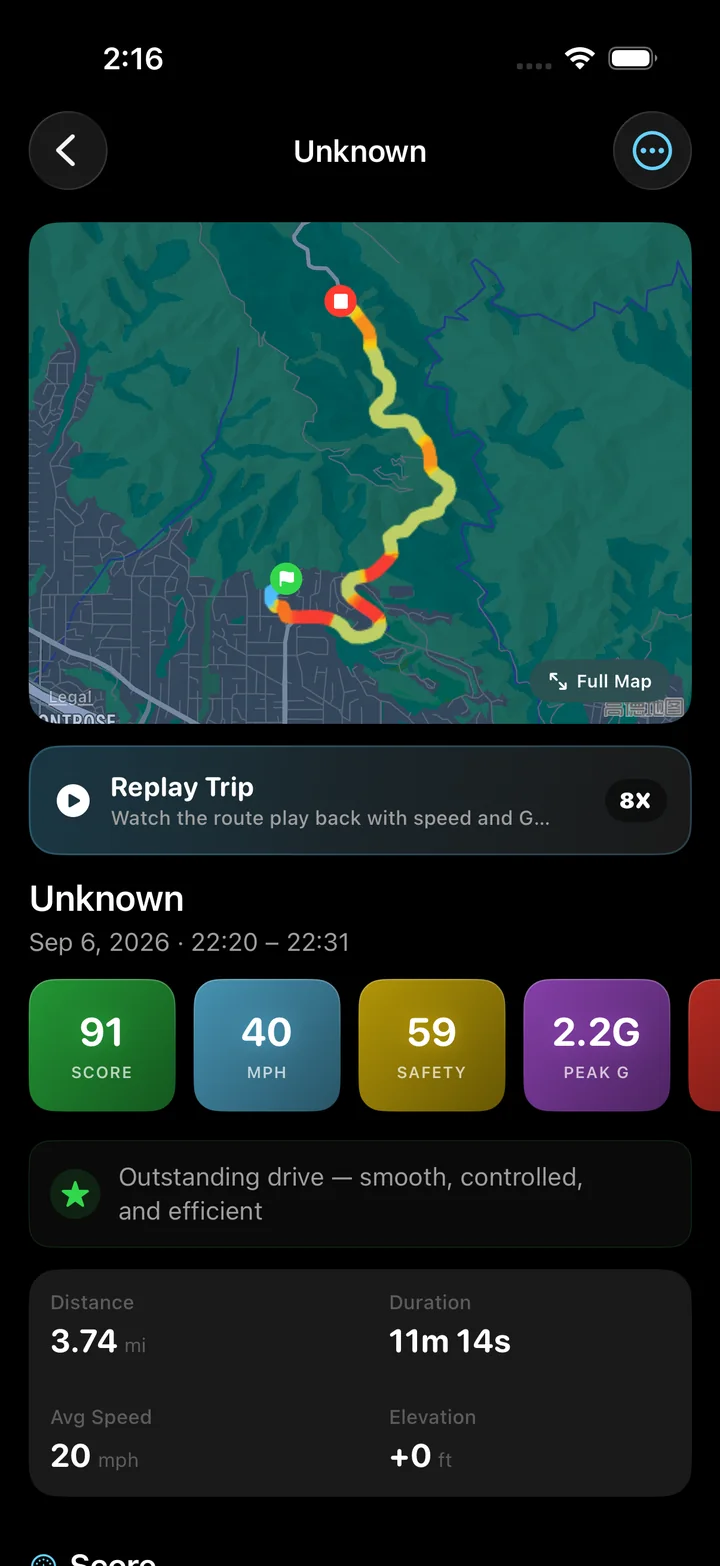
Torq exports GPX for route data and CSV for trip summaries directly from the iPhone app. Its native CSV puts each trip on one row, with distance, duration, average speed and other totals. Use this converter when you need individual GPS points from a GPX file in spreadsheet columns.
Record the drive once, review it in Torq, and keep a data copy for your own analysis. A spreadsheet can answer a specific question while the saved trip preserves the visual context.
Choose between the app's trip-summary CSV, a GPX track and its raw sensor file. Compare Torq's export formats
GPX structure reference
The GPX specification defines separate tracks, segments and routes, with optional time and elevation at each point. Those distinctions determine which rows and values this converter can produce.
Questions
Can I convert GPX to an Excel spreadsheet?
This tool produces a CSV file that spreadsheet software can open. It does not create an .xlsx workbook. Check the delimiter and column types when importing the file.
Why is the converter's CSV different from Torq's native CSV?
They organize different information. The converter writes one row per GPS point, including coordinates and calculated interval speed. Torq's native CSV writes one row per trip, with summary fields such as distance, duration and average speed.
Can I convert a GPX file with no timestamps?
Yes, if it contains valid track or route coordinates. The output will include those points and any supplied elevation, with time and calculated speed left blank where unavailable.
Bring home more than a distance total
Download Torq and record your next trip with its route and speed history. Review the drive on your iPhone, then export the data for the questions you want to answer.