
iPhone speedometer not working? Start here.
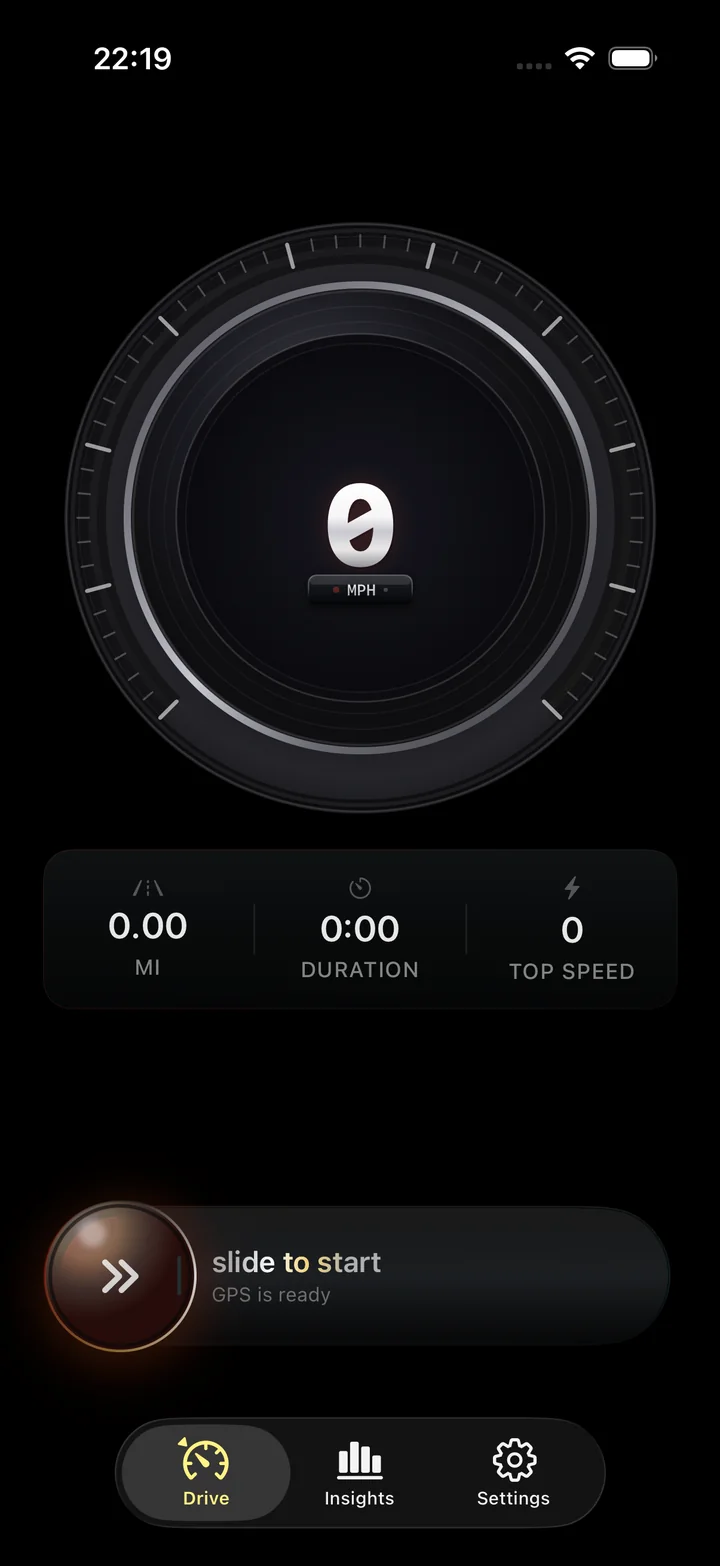
Check location access and GPS reception first. A speedometer needs fresh location readings to update; full signal bars do not guarantee them. If speed works but the map or speed limit is missing, check the connection instead. Make these checks while parked.
On this page
Check the iPhone location settings
Torq needs permission to receive your location. In iPhone Settings, open Privacy & Security, then Location Services. Turn it on, select Torq and allow location access while using the app. Turn on Precise Location for that app, too.
If Torq is missing from the list, open it and respond to its location request. Return to the recording screen afterward. A permission change alone does not start a trip.
Next, try a place with a clearer view of the sky. A garage, covered station or street between tall buildings can obstruct reception. Allow time for the phone to acquire a usable location before judging the result.
Match the check to the symptom
A frozen speed, a missing road map and an unknown limit have different causes. Use what still works to narrow down the problem.
| What you see | What to check |
|---|---|
| Zero while the phone is stationary | This is expected. Zero alone does not confirm location access or establish whether moving speed is accurate. |
| No useful reading outdoors | Check Torq's location permission and Precise Location, then start a recording with a clear view of the sky. |
| Speed stops changing in a tunnel | Fresh GPS readings may be unavailable. A number left on screen is not proof that the phone is still measuring your speed. |
| Speed updates but the map is blank | The route data and the map background are separate. Loading an uncached Apple Maps area can require internet access. |
| Speed updates but the limit is unknown | The automatic road-limit lookup depends on a connection and available OpenStreetMap data. Check the speed alert setting as well. |
For a readout that updates but differs from the dashboard, compare the two measurement methods. Understand GPS speedometer accuracy
Check recording and display settings
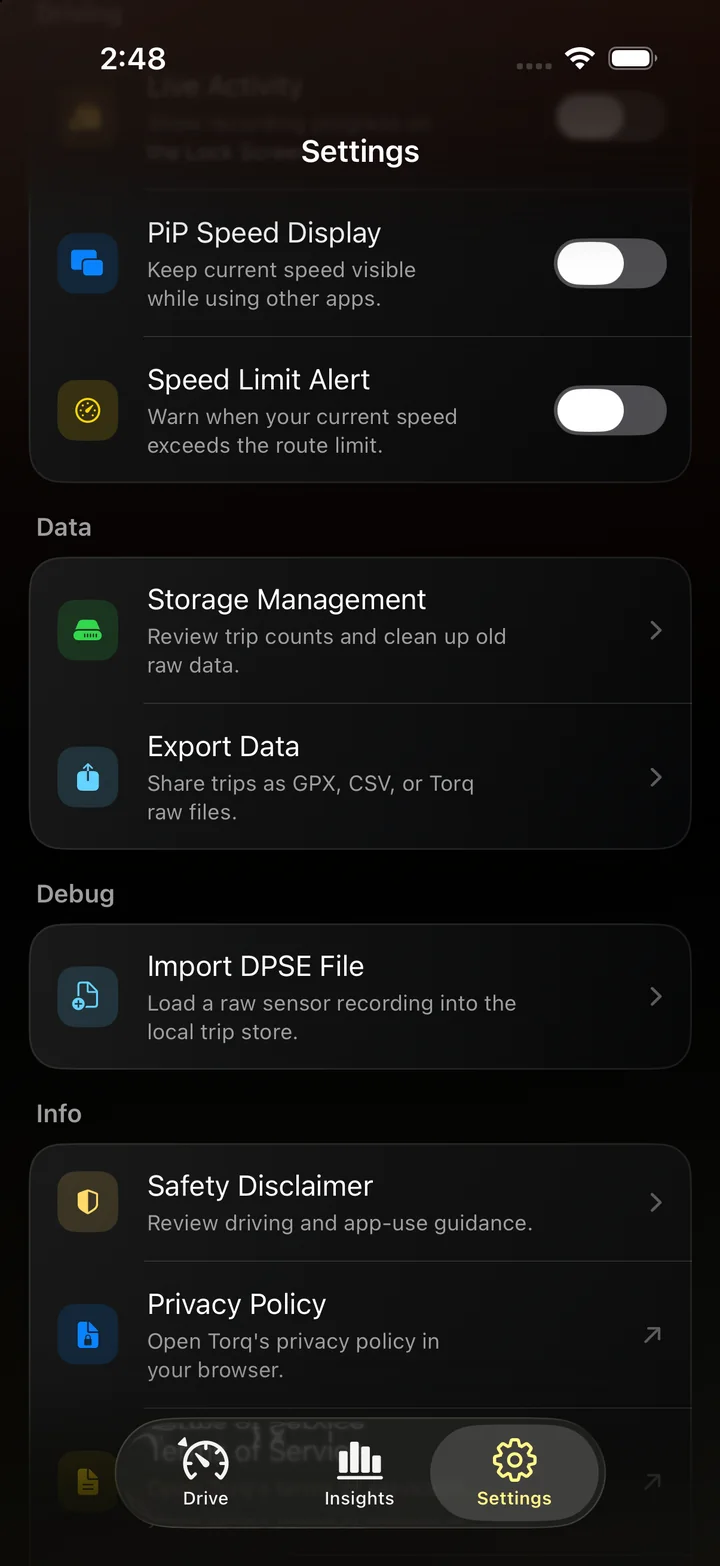
Start a trip in Torq before expecting background recording. The app can continue receiving location updates after you lock the screen or switch apps, with location access allowed. A Live Activity and the floating speed window have their own switches in settings.
If the main gauge updates but an overlay is missing, check those switches before changing GPS permissions. For a reception check, use High Accuracy in Torq's GPS settings. Balanced requests less precise locations and may behave differently in difficult conditions. Neither setting can restore satellite reception inside a tunnel.
Review the Lock Screen, Dynamic Island and Picture in Picture display options. Set up Torq's speed overlays
If the reading still does not update
Compare location behavior in another app while you are parked. If that app also cannot locate you, continue with Apple's device-level GPS checks. Correct date and time settings and a less obstructed location are useful places to start.
If only Torq is affected, contact Eversight Studio with your iPhone model, iOS version, Torq version and the symptom: zero, a frozen number or a missing overlay. Mention whether it happens outdoors and whether the recording timer continues. These details help separate location reception from a display problem without sending a trip file.
Questions
Why does my speedometer show zero when Maps knows my location?
A location marker tells you where the phone is estimated to be. It does not establish a useful moving-speed reading. Zero is normal when stationary; when traveling, check precise location access and reception.
Will turning on cellular data fix the speedometer?
It can help network-backed location services and map loading, but it does not guarantee a usable GPS reading. Torq's speed recording can work without internet when the phone has adequate reception.
Should I reset all location settings?
Start with Torq's own permission and a reception check. A full location and privacy reset affects other apps too, so it is not the first step for a single missing speed reading.
Get the readout ready before the drive.
Set location access, choose your units and start a recording. Torq keeps the route so you can review it after you park.