
A train speedometer on your iPhone.
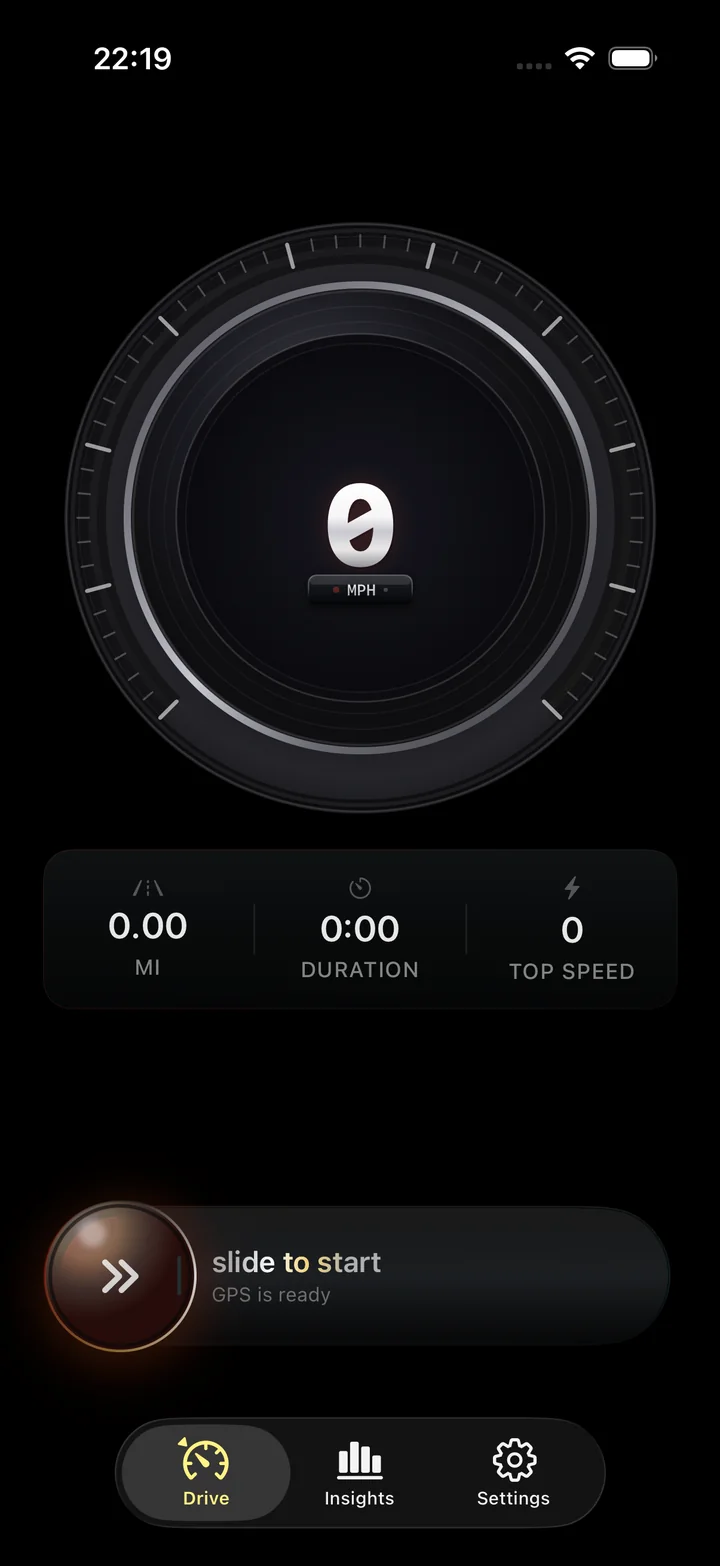
Check how fast your train is going with Torq's GPS speed readout in mph or km/h. Follow speed, distance and elapsed time from your seat. After arrival, check the top and average speed and replay the recorded route. Reception inside the carriage determines which parts of the journey Torq can capture.
On this page
Set up before the train leaves
Allow location access, choose your units, then start recording when you want the journey to begin.
Allow location access
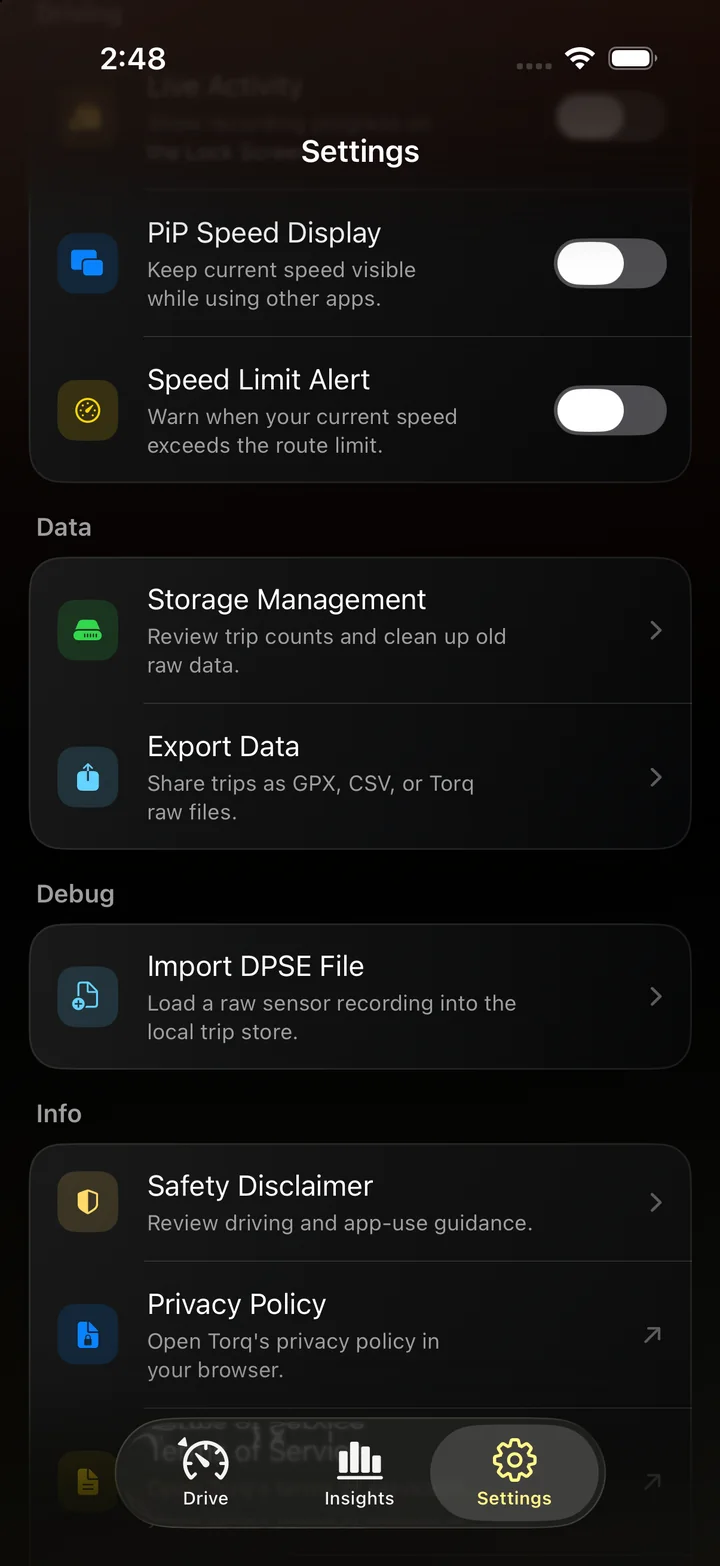
Let Torq use your location when prompted. In iPhone Settings, open Privacy & Security, then Location Services and Torq. Leave Precise Location on so the app can use your specific position.
Choose mph or km/h
Select Imperial for miles per hour or Metric for kilometers per hour in Torq's settings. Use the unit shown on the train's onboard display if you want to compare readings.
Start from your seat
Start the recording manually once you are seated. Keep the phone still while checking speed. Stop the recording at your destination to keep the walk along the platform out of the journey.
A tunnel can interrupt the reading
Tunnels, covered stations and the train itself can obstruct GPS reception. A seat near a window may help the phone receive satellite signals, but it does not guarantee a usable fix throughout the journey.
When location updates are unavailable or too imprecise, Torq's speed reading may stop updating. A number that stays on screen is not proof the train is holding that speed. Wait until reception returns before comparing it with the onboard display.
Speed and train status answer different questions
Torq measures your phone's movement using location data. It does not look up a train number or receive speed from the operator. Use the railway's own service for departures, delays and where a train is along its route.
| What you want to know | Where to look |
|---|---|
| How fast is my train going right now? | Torq's current speed, with usable GPS reception. |
| How far have I traveled since boarding? | The distance in your active recording. |
| Is my train delayed or approaching my station? | The operator's live running information. |
| What was the journey's top or average speed? | The saved trip, allowing for any gaps in reception. |
Read the journey summary in context
Station stops count toward your average speed while recording continues. The average covers the period you recorded, not just the stretches between stations. A recording started well before departure will include that wait unless you pause it.
Torq is designed for driving, and its driving score uses car-oriented analysis. A score generated from a train journey does not assess the train, its operator or the track. For a passenger, the useful record is the captured speed, distance and time.
Use the journey's distance and duration to see what station stops do to its average. Compare average speed with stops
Check your iPhone's location settings
Location Services and Torq's location permission need to be enabled. Apple's guides explain where to change those settings and why roofs and other obstructions can affect GPS reception.
Questions
Does a train speedometer need the train's Wi-Fi?
GPS speed recording does not require the train's Wi-Fi or a cellular data connection. It does require usable location readings. Losing internet access and losing GPS reception are different problems; a tunnel can affect reception even when onboard Wi-Fi still works.
Will Torq end the journey when I get off the train?
End it yourself when you arrive. Recording does not identify your destination or distinguish the train ride from your walk out of the station.
Can I use it on an underground train?
Do not expect a continuously updating GPS speed underground. A route that alternates between tunnels and open air may produce an incomplete recording. This use depends on reception, not the name or type of train.
Check the speed on your next train ride
Open Torq from your seat, choose your units and start recording. When you arrive, stop the trip to keep the journey's recorded speed, distance and time together.